

Reader-supported: when you buy through our links we may earn a commission, at no extra cost to you. As an Amazon Associate we earn from qualifying purchases. Learn more
Home office lighting ideas are critical for anyone who spends hours at their desk—it’s about much more than just looking good on camera or matching the décor. Your workspace lighting directly impacts comfort, eye health, and work performance, especially if you work remotely or freelance. This guide cuts through the fluff and shows you advanced yet practical ways to upgrade your home office lighting for better productivity and less eye strain.
Our picks for this guide
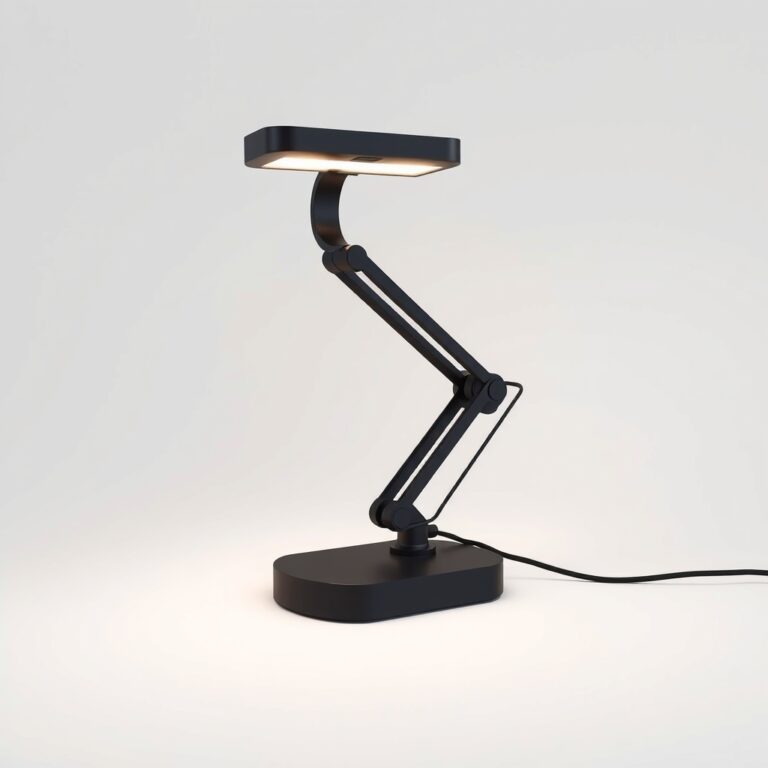
Dimmable LED desk lamp
Adjustable brightness and colour temperature for focused work.
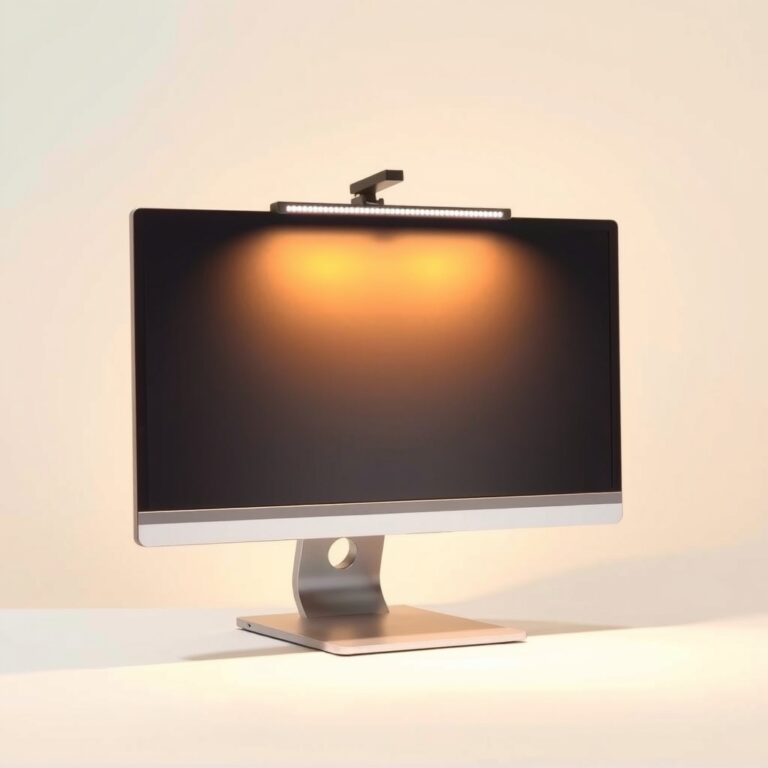
Monitor light bar
Lights your desk without glare on the screen.
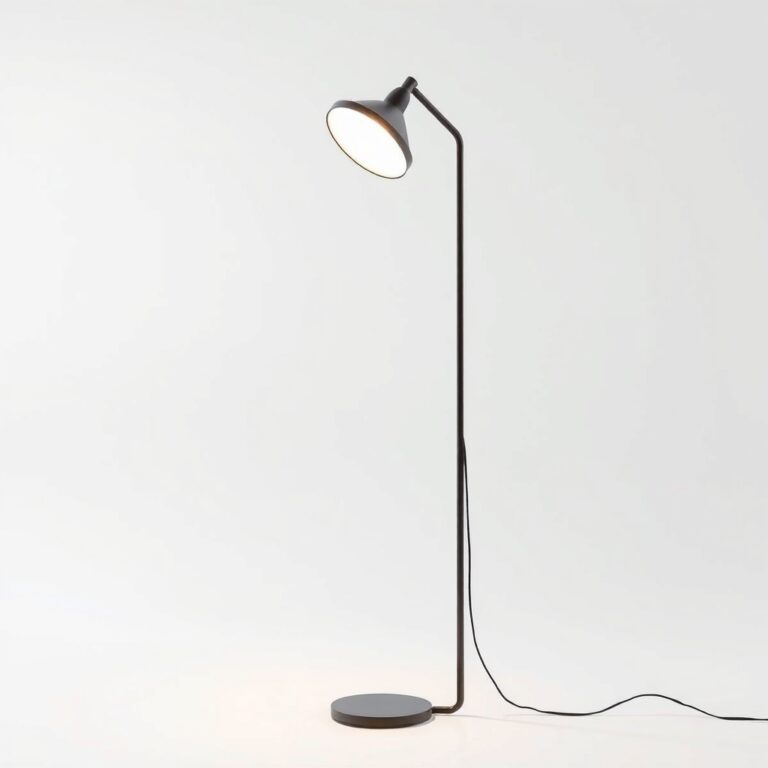
Daylight floor lamp
Adds bright, even light to a room with little daylight.
As an Amazon Associate we earn from qualifying purchases, at no extra cost to you. Prices change often, so check the current price on Amazon.
Key Takeaways
- Home office lighting is crucial for reducing eye strain, preventing headaches, and maintaining productivity—poor choices often make work harder than it should be.
- Combining a desk lamp with a monitor light bar and bias lighting delivers layered, ergonomic illumination—solving common problems like glare and flicker.
- Cost, smart lighting controls, and sustainability features are often missing from popular guides but can make your lighting setup more comfortable and efficient in the long run.
- Why Home Office Lighting Matters More Than You Think
- Understanding Desk Lamp and Monitor Light Bar Options
- Top Pain Points: Glare, Flicker, and Eye Strain
- Essential Geometry and Setup Principles
- Missing from Most Guides: Cost, Smart Controls, and Sustainability
- Quick-Start Checklist: Reducing Eye Strain in Your Workspace
- Final Thoughts: Choose Lighting That Works for You
- Frequently Asked Questions
Why Home Office Lighting Matters More Than You Think
Lighting quality in your home office directly impacts your well-being and work performance. Poor lighting contributes to eye strain, fatigue, and headaches—making it a performance issue, not just a design choice. Glare from bare bulbs or windows, low-quality flickering LEDs, and excessive blue light are among the top user complaints with home office lighting (, ).
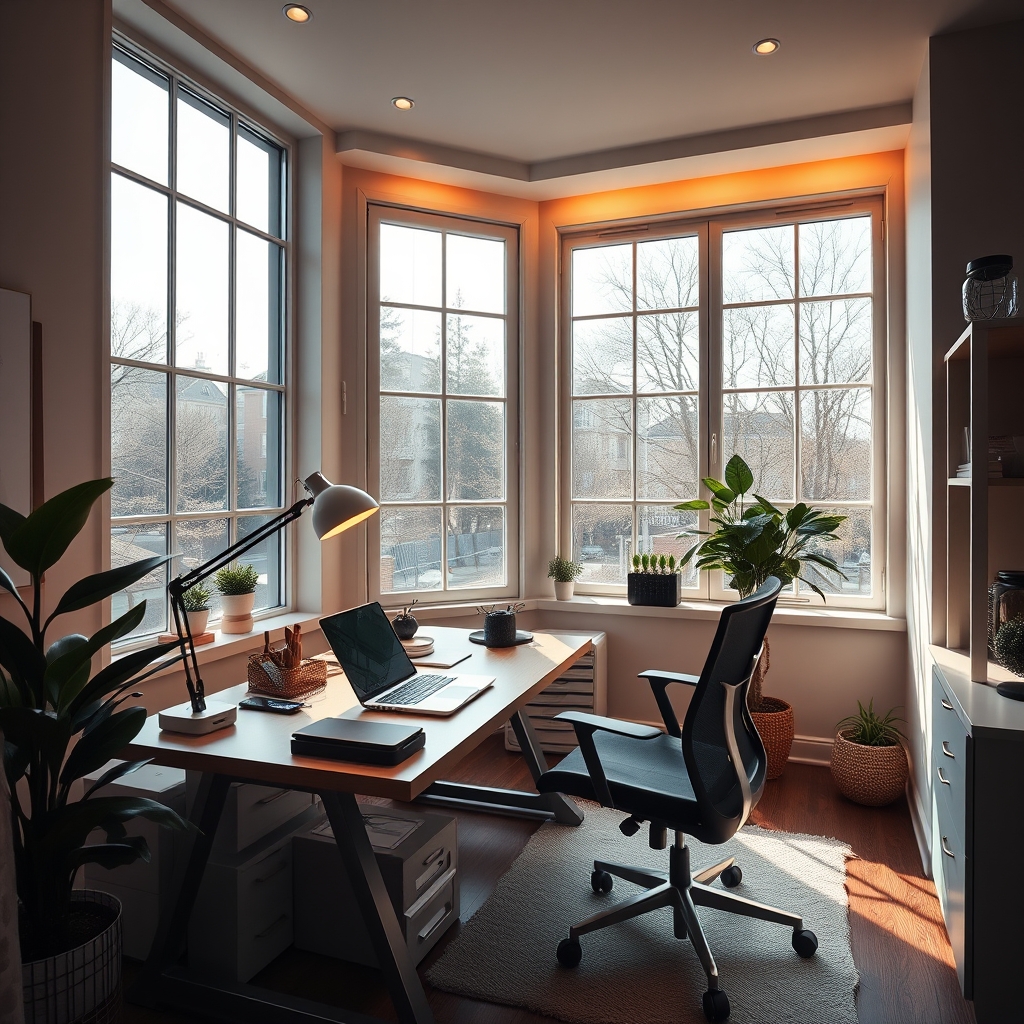
Unlike the overhead fixtures typical in shared offices, home setups often use mismatched table lamps, overlooked window positions, or harsh LED strips. While aesthetics matter, optimizing lighting for your task workload (screens, reading, video calls) is key for reducing long-term discomfort and sustaining focus. Addressing these pain points should guide your upgrades—not just following trends or what looks good on Instagram.
Understanding Desk Lamp and Monitor Light Bar Options
The heart of practical home office lighting ideas lies in understanding the difference between a desk lamp for home office and a monitor light bar—and why using both is often best. Desk lamps excel at task lighting by illuminating paperwork, keyboards, or detailed project areas. In contrast, monitor light bars attach atop your monitor and project a controlled beam downward, illuminating your workspace without casting direct light onto the screen.
According to expert advice, “A light bar handles screen-related ambient lighting, while a desk lamp supports physical tasks like writing or reading. Using both allows for layered lighting” ().
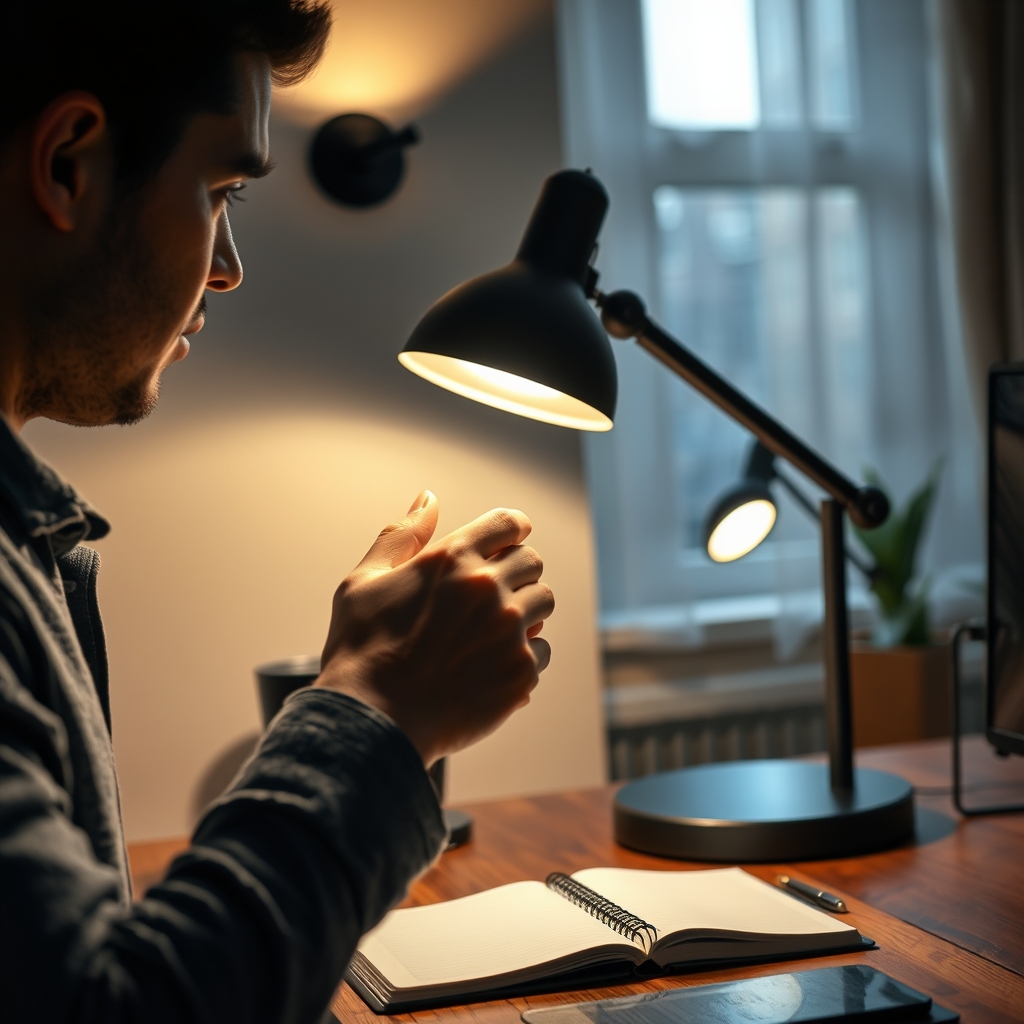
Choosing between the two depends on how much you use paper versus digital work, your desk space, and your glare issues. If your work involves mostly screen-based tasks, a monitor light bar will reduce shadows and reflections. For those who still need to handwrite, draw, or read hard copies, a supporting desk lamp (with a wide, even beam and adjustable color temperature) is essential. One helpful external guide notes that monitors are already sources of light, but paper tasks require direct, gentle illumination to avoid fatigue.
Layering both sources and ensuring each is independently adjustable makes it easy to adapt the lighting to your workload throughout the day.
Top Pain Points: Glare, Flicker, and Eye Strain
Most users struggle with three main lighting frustrations: glare, flicker, and eye strain. These usually have simple but critical causes.
- Glare: Direct light (bare bulbs, windows, or lamp heads) in your field of view or reflecting on your screen causes visual discomfort and makes you squint. Position lighting to the side, and use diffuser or shades or indirect fixtures whenever possible ().
- Flicker: Many low-cost LEDs flicker—even if not visible to the naked eye—which can lead to headaches or low-level eye fatigue over hours of use. Look for lamps labeled “flicker-free.”
- Eye strain: Desk lamps that shine directly on your screen, cast harsh shadows, or use high blue light LEDs (especially at night) can make symptoms worse. Switch to lamps with adjustable or warmer color temperature. “A desk lamp that creates glare on the screen, casts harsh shadows, or emits excessive blue light at night can worsen eye strain.” (, )
Importantly, higher brightness does not always mean better. Overshooting recommended levels can make your workstation harsher and create new angles of glare. Choosing fixtures with dimmers, adjustable direction, and color temperature lets you personalize light based on your sensitivity and time of day.
Essential Geometry and Setup Principles
Setting up your workspace correctly matters just as much as which lights you buy. The right geometry prevents most of the common pain points mentioned above. Experts recommend the following:
- Always place your desk lamp for home office to the side, never directly in front of the monitor. Angle its cone to light your work surface instead of the screen’s face.
- If you wear glasses, position the lamp slightly higher and at a steeper angle to avoid lens reflections.
- Monitors should sit perpendicular to any windows—not facing or backing onto them—to minimize daylight glare and maximize control over ambient lighting ().
- Layer three types of lighting for best comfort: ambient (soft overhead), task (focused desk/reading lamp), and bias (a gentle strip of light behind your monitor).
These setup rules stay true across all popular ergonomic guidance, and are rarely followed in most home office makeovers. Fine-tune lamp brightness, bulb warmth (aim for 3500K–4500K if adjustable), and the height of your fixtures for optimal comfort, especially during extended work.
Missing from Most Guides: Cost, Smart Controls, and Sustainability
Most “best lighting ideas” skip over crucial decision factors like ongoing energy costs, smart or connected controls, and eco-friendly construction. But these can make your workspace more user-friendly, affordable, and future-proof.
| Factor | Why It Matters | What to Look For |
|---|---|---|
| Electricity Cost | Running several lamps or bright LEDs all day increases power bills over time | Opt for modern LED fixtures (many use under 10W), check for Energy Star or equivalent ratings |
| Smart Controls | Automating brightness/color and scheduling on/off cycles increases user comfort, saves power, and adapts to workflow | Choose models compatible with Tuya, Google Assistant, Alexa, or Apple HomeKit |
| Eco-Friendly Materials | Many budget lamps use plastics or low-grade metals that degrade quickly or have higher manufacturing emissions | Look for certifications, recycled materials, or brands with published environmental commitments |
“Lighting guides routinely skip energy-use or cost analysis, smart controls, and sustainability/material eco-ratings—these critical buying factors are missing in top lists.” (Synthesized from research)
Not only can switching to efficient LEDs and setting up auto-off modes (via smart bulbs, sensors, or routines) save money, but it may reduce bulb changes and maintenance down the line. These factors also complement workflow upgrades, like moving to a standing desk or adding a proper ergonomic chair for overall wellness.
Quick-Start Checklist: Reducing Eye Strain in Your Workspace
Use the checklist below to instantly upgrade your lighting comfort—print it or copy/paste for easy reference:
- Position your desk lamp at desk height to the left/right side—not in line with your screen
- Orient your monitor perpendicular to windows or major light sources
- Add an LED bias lighting strip behind your monitor (USB-powered preferred)
- Install a diffuser or shade over any bare bulb in your field of view
- Choose lamps with color temperatures between 3500K and 4500K if possible; use warmer light (below 3500K) in the evening
- Opt for flicker-free LEDs and fixtures with adjustable dimmers
- Automate lights with smart plugs or timers to limit late-night eye strain
“The highest-impact, lowest-cost upgrades are a bias lighting LED strip behind your monitor and a diffuser for any bare bulbs—costing under 30 dollars and targeting biggest strain triggers.” ()
Want more upgrades? See our guide on standing desks, or learn how to set up an ergonomic home office with our in-depth step-by-step setup guide.
Final Thoughts: Choose Lighting That Works for You
The smartest home office lighting ideas are those custom-fit to your work routine and eye comfort needs—not someone else’s mood board. Address key pain points like glare and flicker first, layer your lighting, and don’t overlook features like smart controls or sustainability that can future-proof your space. As researchers note, “Layered, adjustable lighting and conscious fixture selection are fundamental to reducing visual discomfort in screen-based workspaces.” (, )
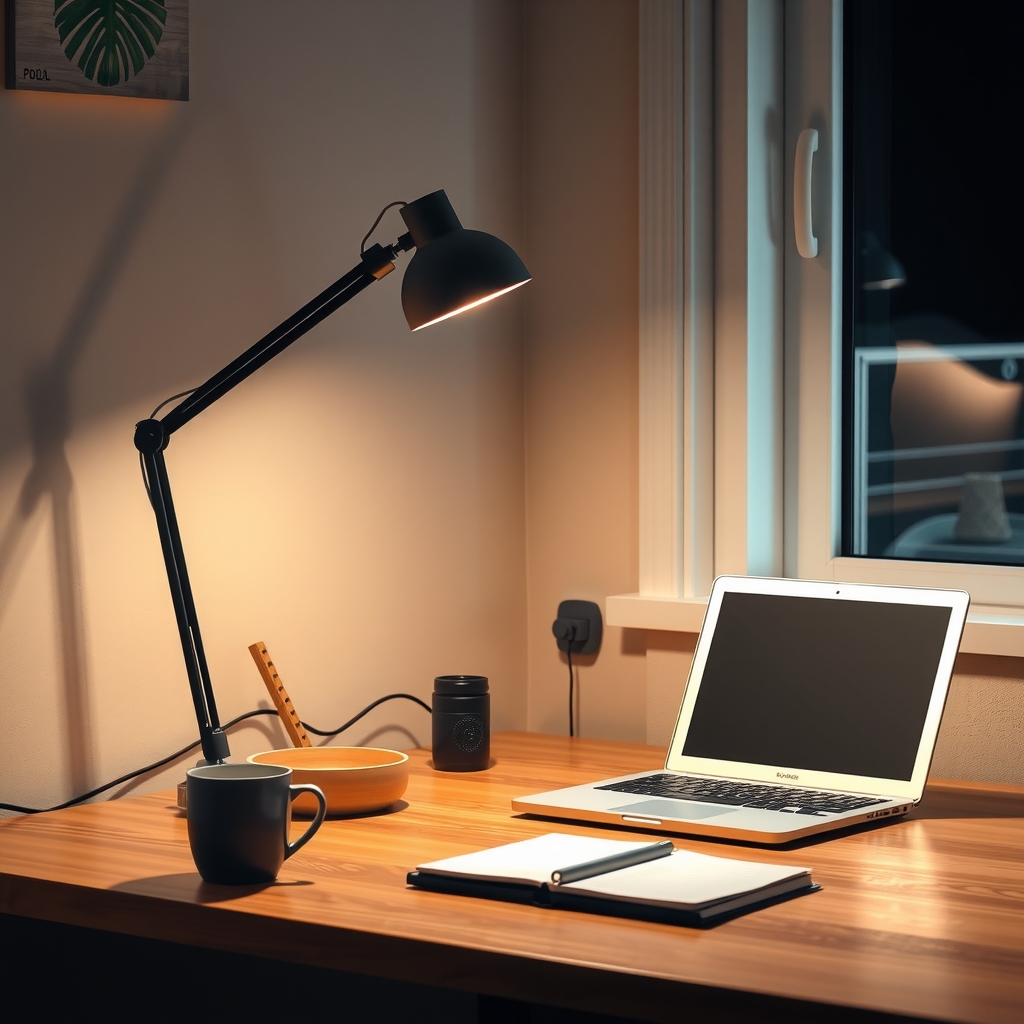
Ready to upgrade? Explore our office chair reviews for more ergonomic upgrades, or check out our standing desk guide for next-level workspace wellness. Don’t forget: small, targeted lighting tweaks can yield outsized improvements for comfort and concentration—so get started today.
Keep reading
- Our office chair reviews: ergonomic, mesh, executive and gaming chairs compared.
- Standing desks: what to look for before you buy.
- How to set up an ergonomic home office: a step-by-step guide.
Frequently Asked Questions
What is the ideal color temperature for a home office desk lamp?
Most ergonomic sources recommend a color temperature between 3500K and 4500K for focused productivity during the day. Warmer tones (below 3500K) are helpful in the evenings to minimize blue light exposure and help your body wind down before sleep.
How can I reduce glare on my computer screen?
Position your light sources (lamp, overhead light) to the sides of the monitor, never directly in front or behind. Make sure the monitor sits perpendicular to windows and use blinds or shades to diffuse strong sunlight. Bias lighting behind the monitor can also reduce screen-background contrast and perceived glare.
Are monitor light bars worth it for small desks?
Monitor light bars are ideal for small desks because they attach to the top of your monitor and project light down onto your keyboard and workspace. This frees up desk real estate and minimizes screen reflections compared to traditional desk lamps.
How much does it cost to upgrade lighting for a home office?
Simple but effective upgrades like a bias LED strip and diffusers for bare bulbs typically cost under $30. High-quality smart LED desk lamps or monitor light bars may range from $40 to $100 or more at the time of writing, depending on features and brand.
Can smart lighting really reduce eye strain?
Yes, smart controls make it easier to automate dimming, color temperature, and on/off cycles throughout the day. This helps you maintain optimal lighting without manual adjustments, reducing eye fatigue especially if you forget to adjust settings as daylight changes.
Ready to choose?
Dimmable LED desk lamp
Adjustable brightness and colour temperature for focused work.
Monitor light bar
Lights your desk without glare on the screen.
Daylight floor lamp
Adds bright, even light to a room with little daylight.
As an Amazon Associate we earn from qualifying purchases, at no extra cost to you. Prices change often, so check the current price on Amazon.